

M.2 NVMe SATA SSD Enclosure Visual Smart SSD Case USB 3.2 Gen 2 10Gbps NVMe PCI-E 20Gpbs





| Sort by Price | Sort by Availability | Sort by CODE | Sort by Variant |
|---|---|---|---|

$11484
|
In stock
|
DH-145-e5777da8b2b026c0d7b36c22
|
Variant:
|

$3964
|
In stock
|
DH-145-e905740485a6eb4fd87cf252
|
Variant:
|
|
$7064
|
In stock
|
DH-145-b0473f6a03c244b27b9cd25d
|
Variant:
|

$7736
|
In stock
|
DH-145-6879f30fbd3c953703425ae0
|
Variant:
|

City: EN, Sheridan
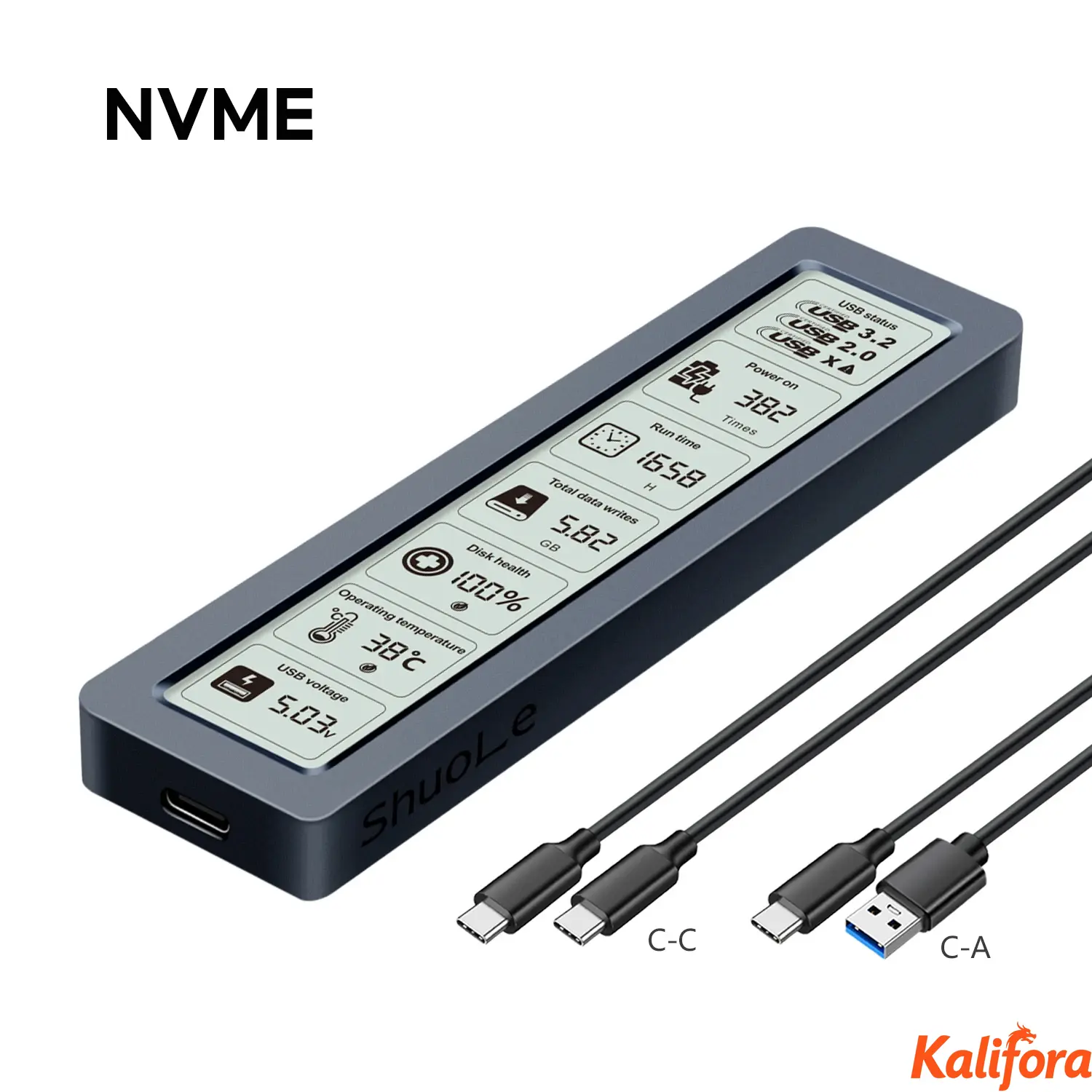
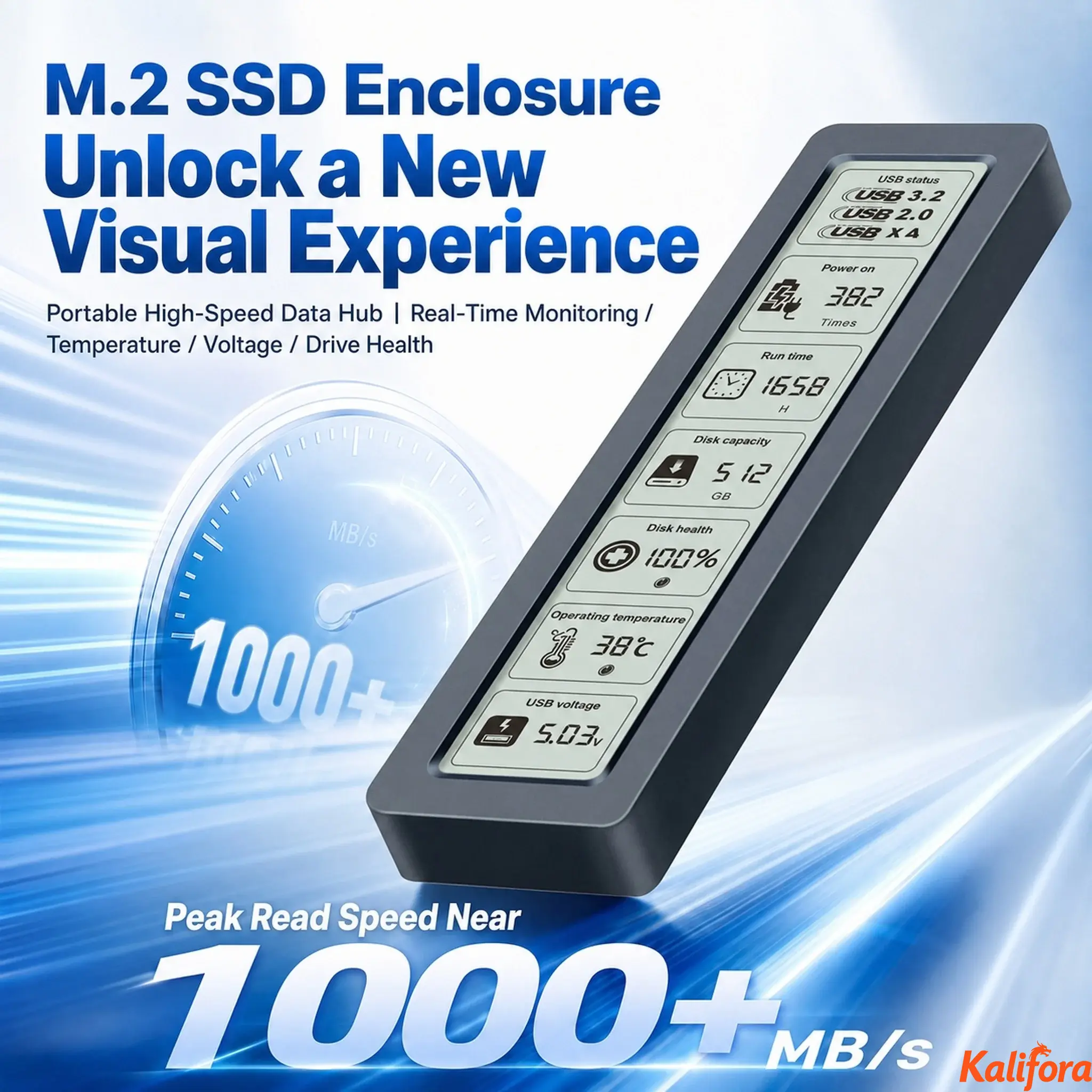
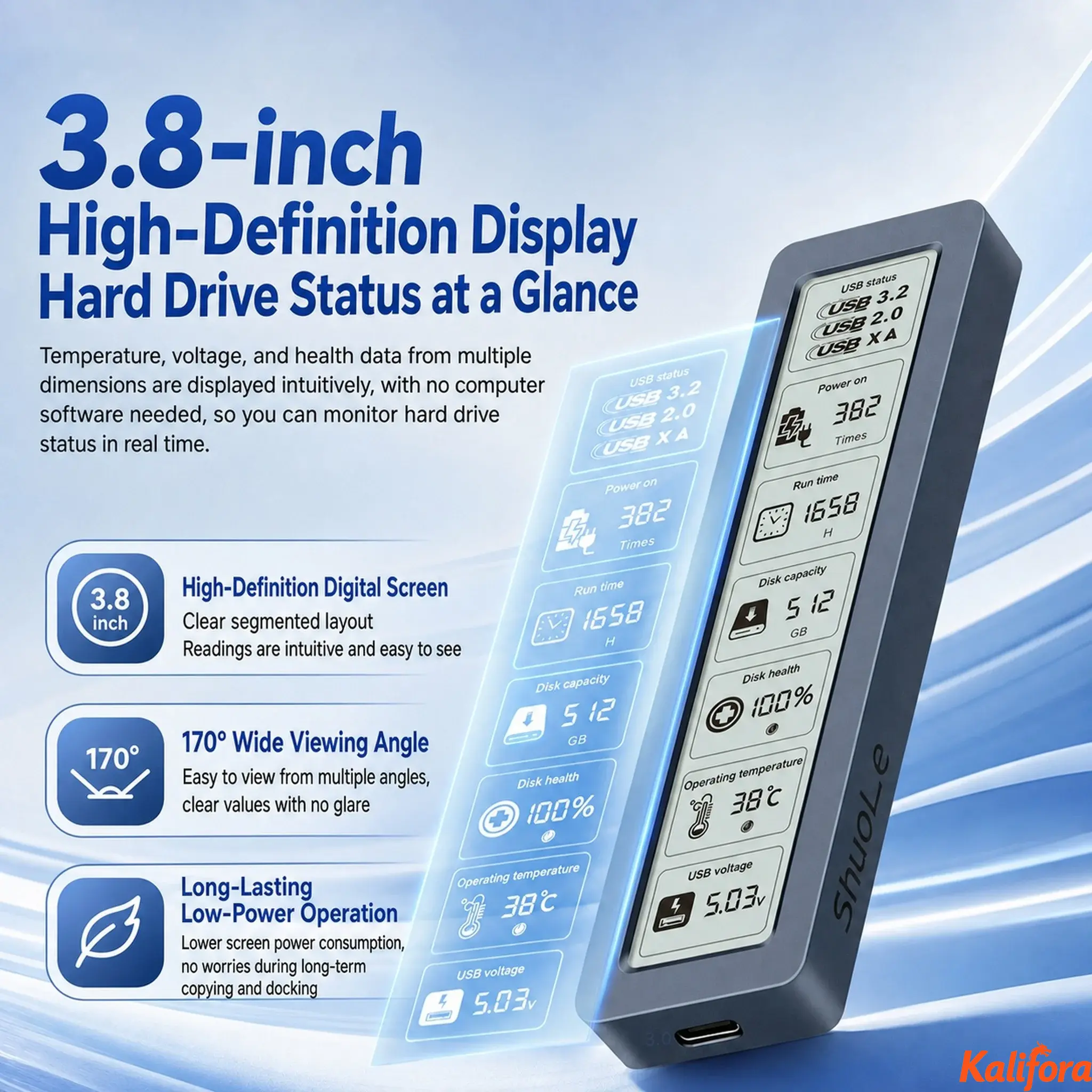
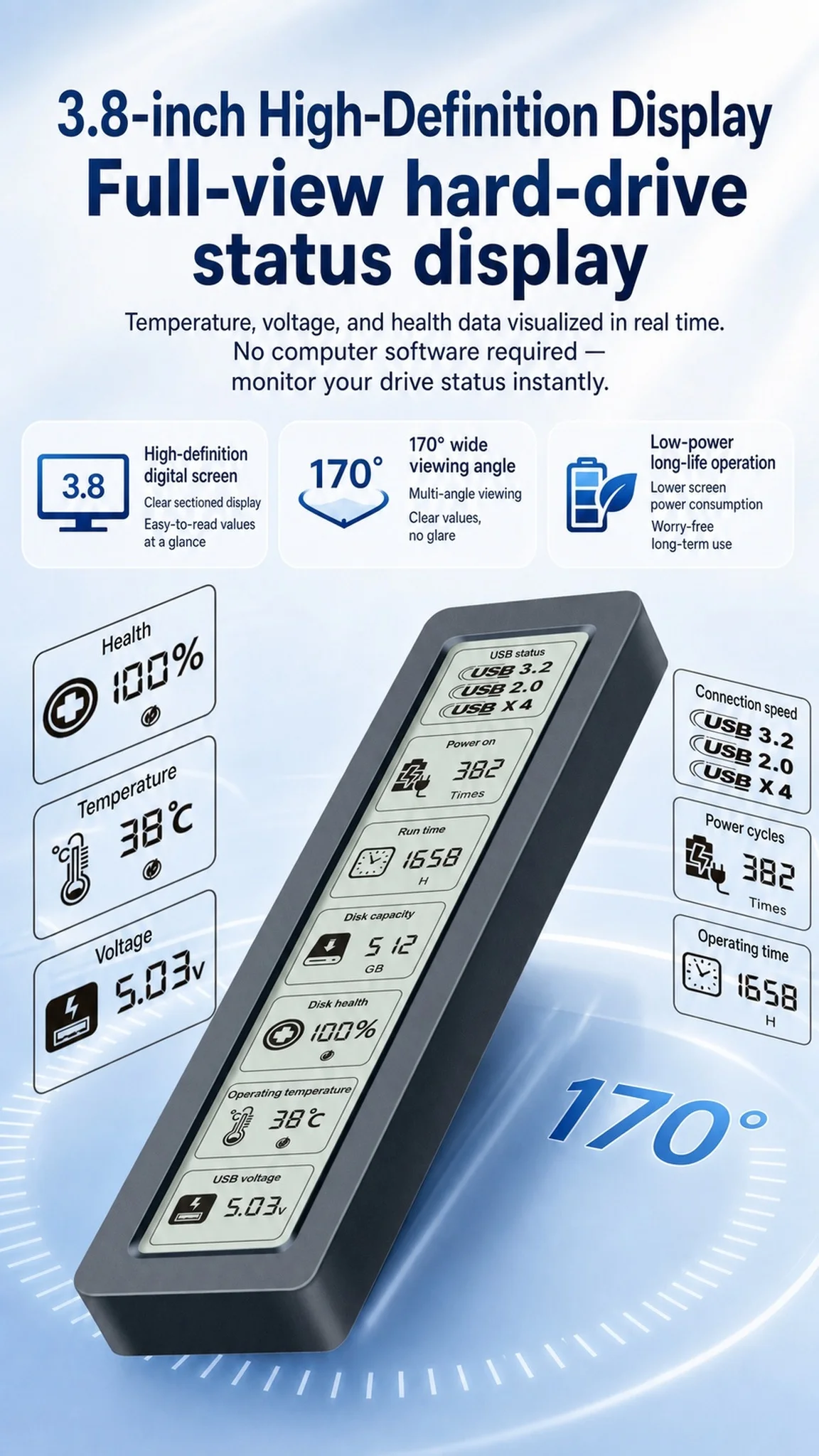
Adopting the latest USB 3.2 Gen 2x2 interface and equipped with a 3.8-inch display screen, this enclosure can real-time display the drive's SMART health information.
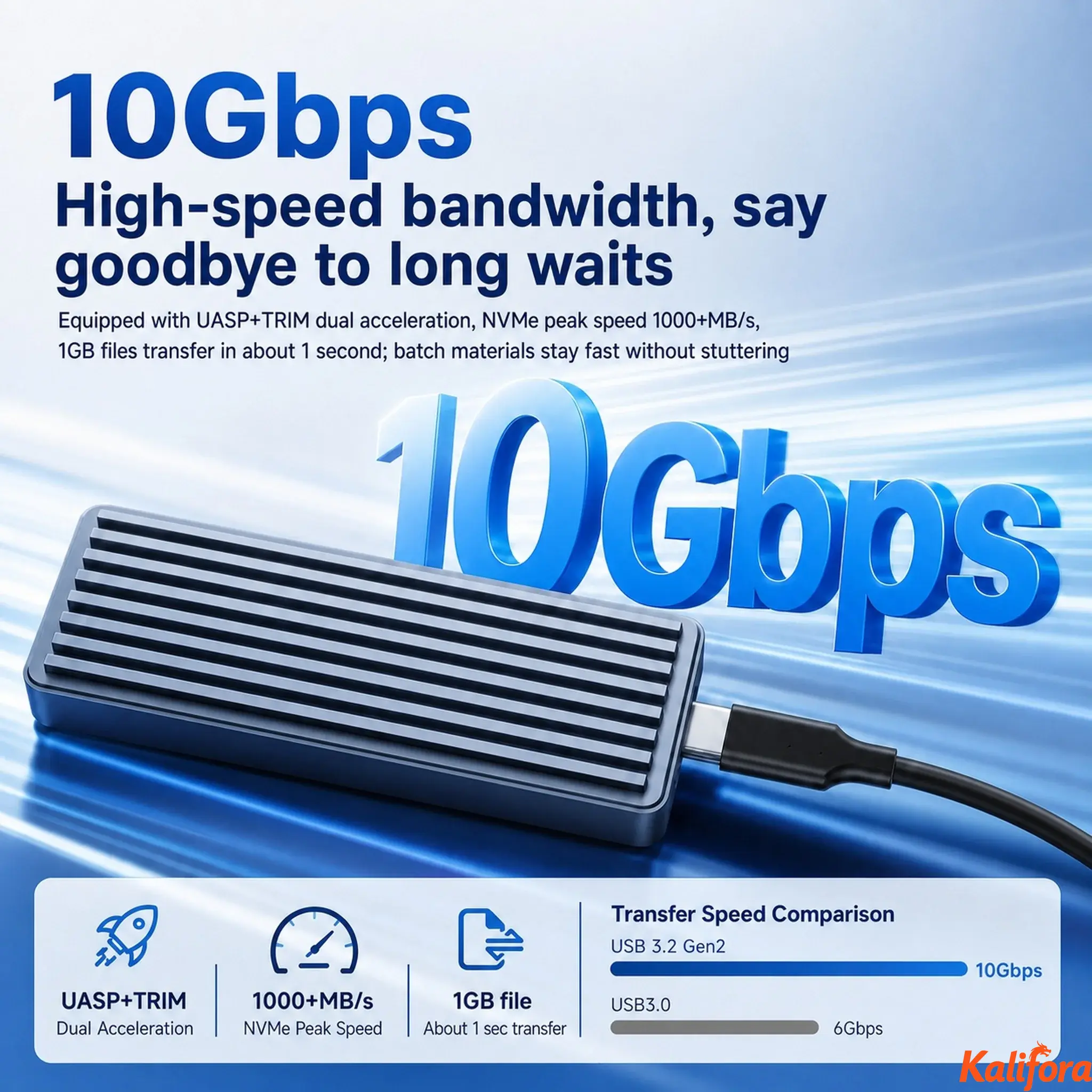
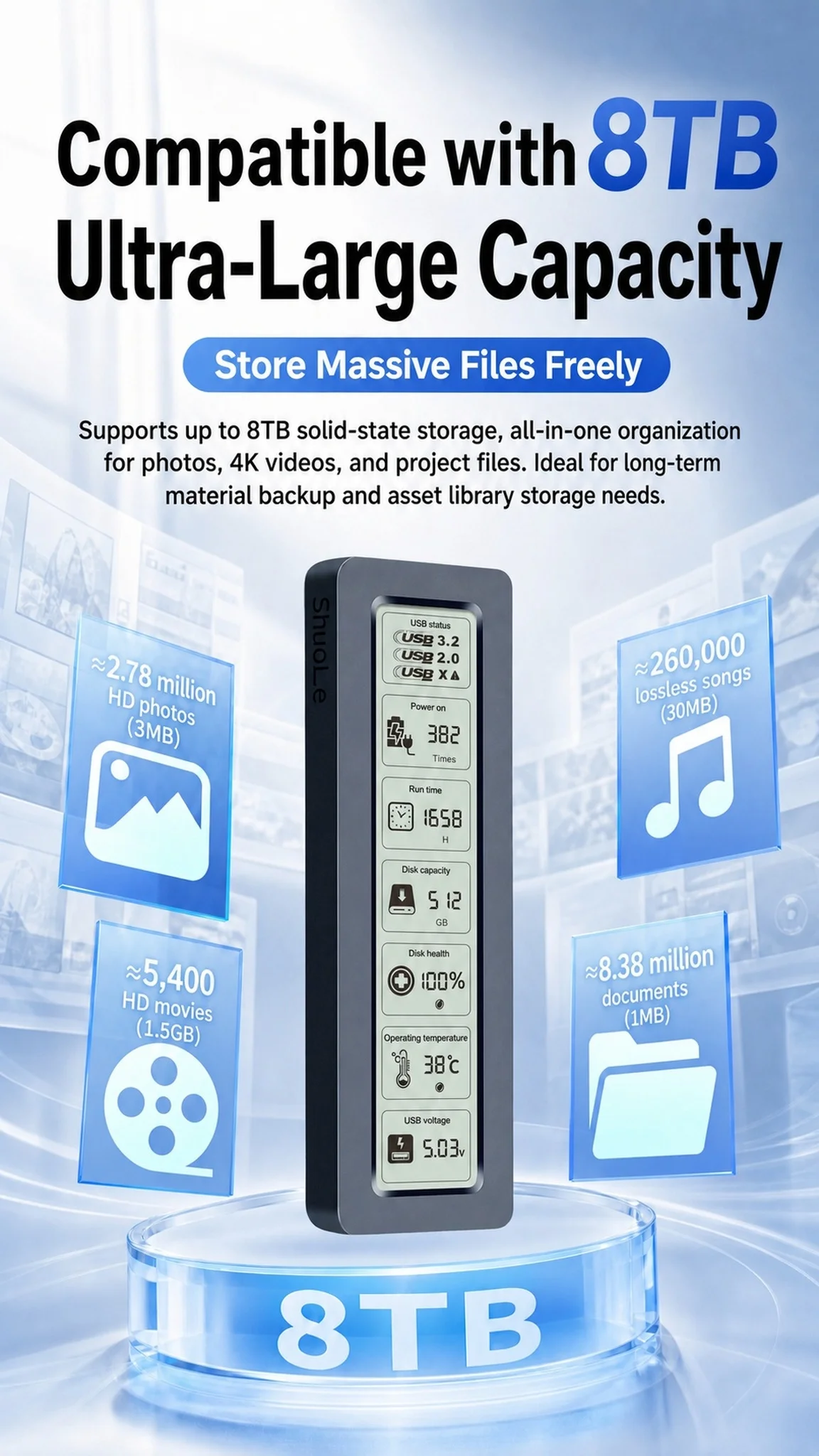
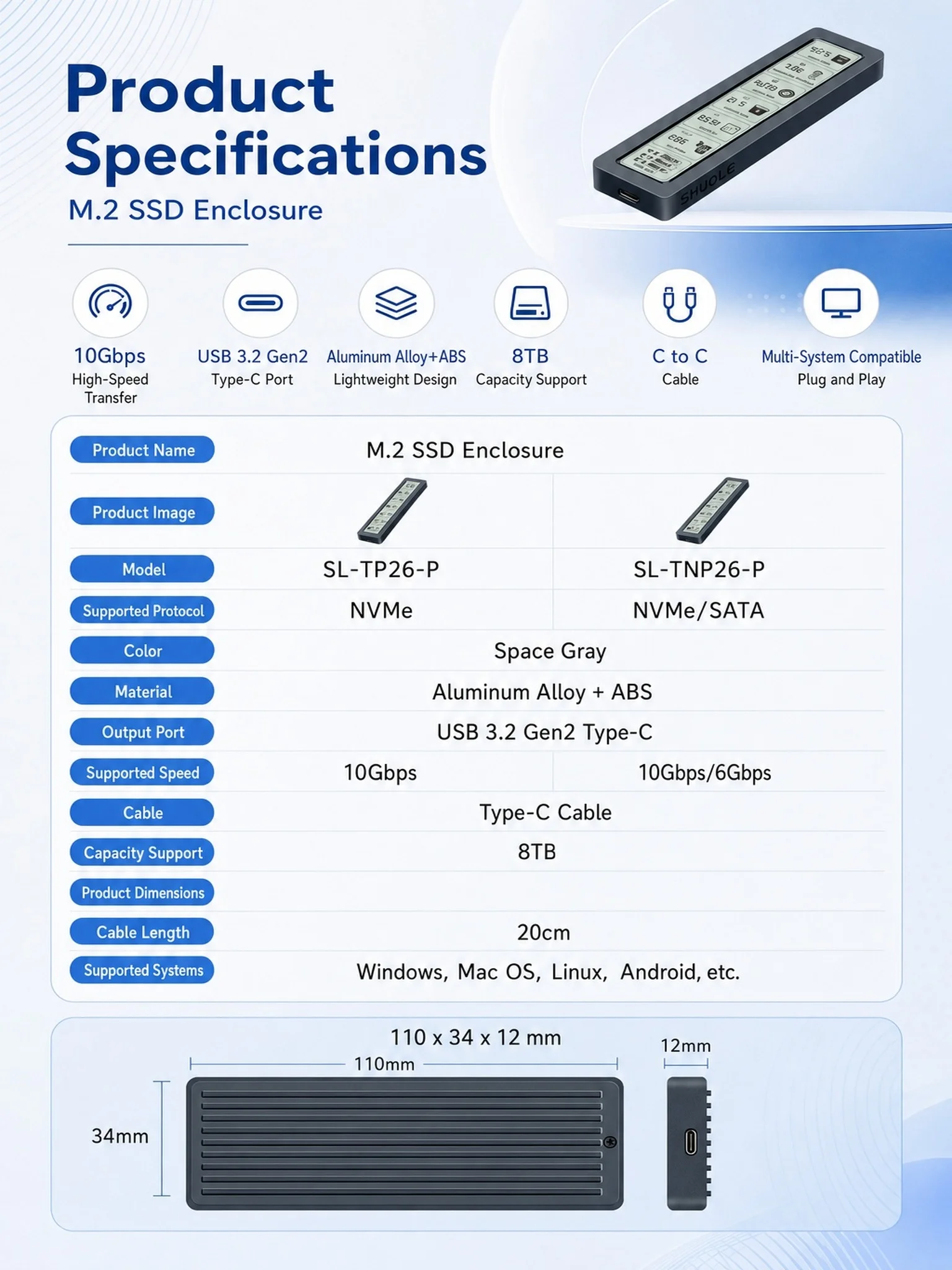
This M.2 enclosure delivers a 20Gbps data transfer speed for NVMe solid-state drives, while supporting SATA protocol with up to 6Gbps bandwidth. It supports hard drives with a maximum capacity of 8TB.
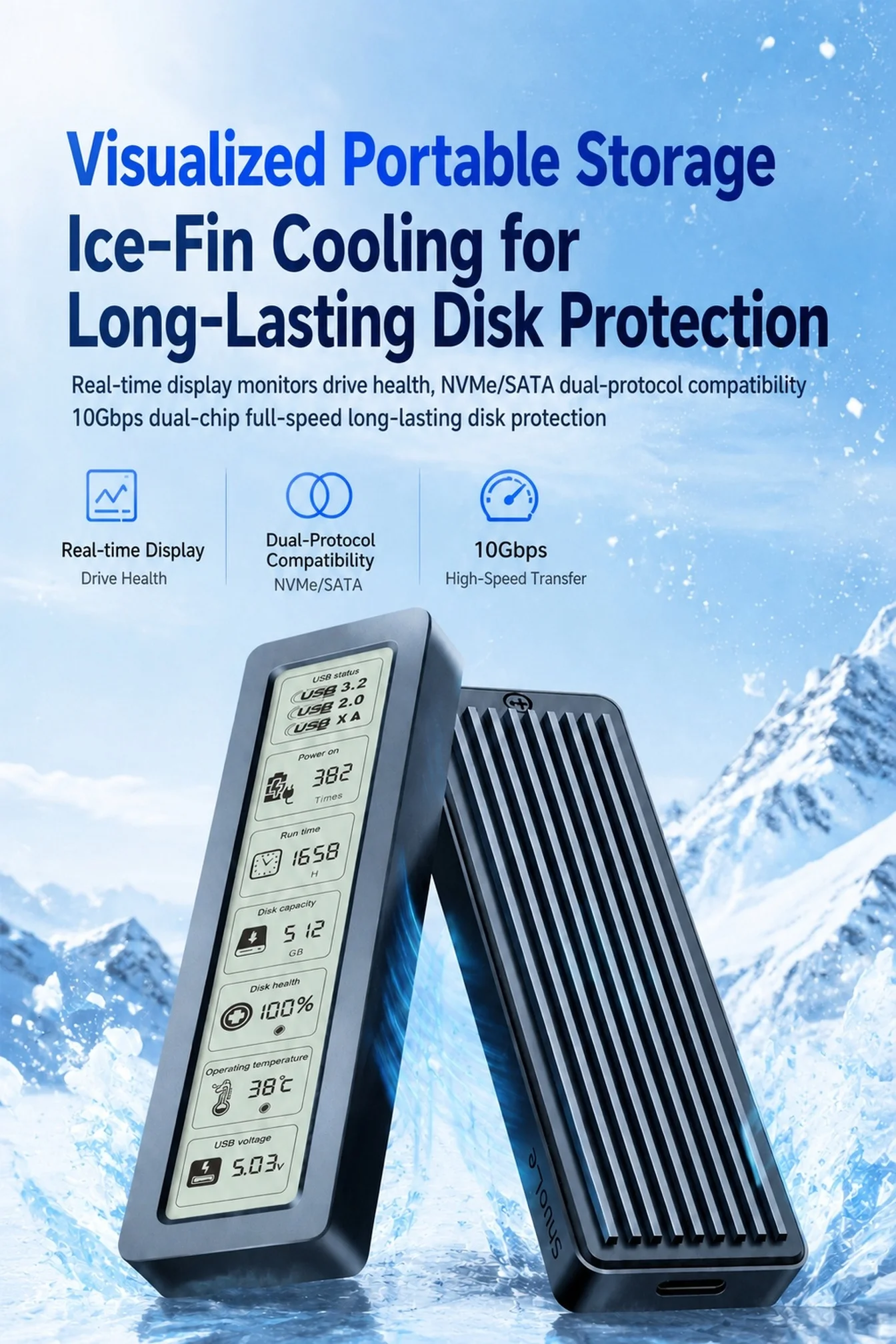
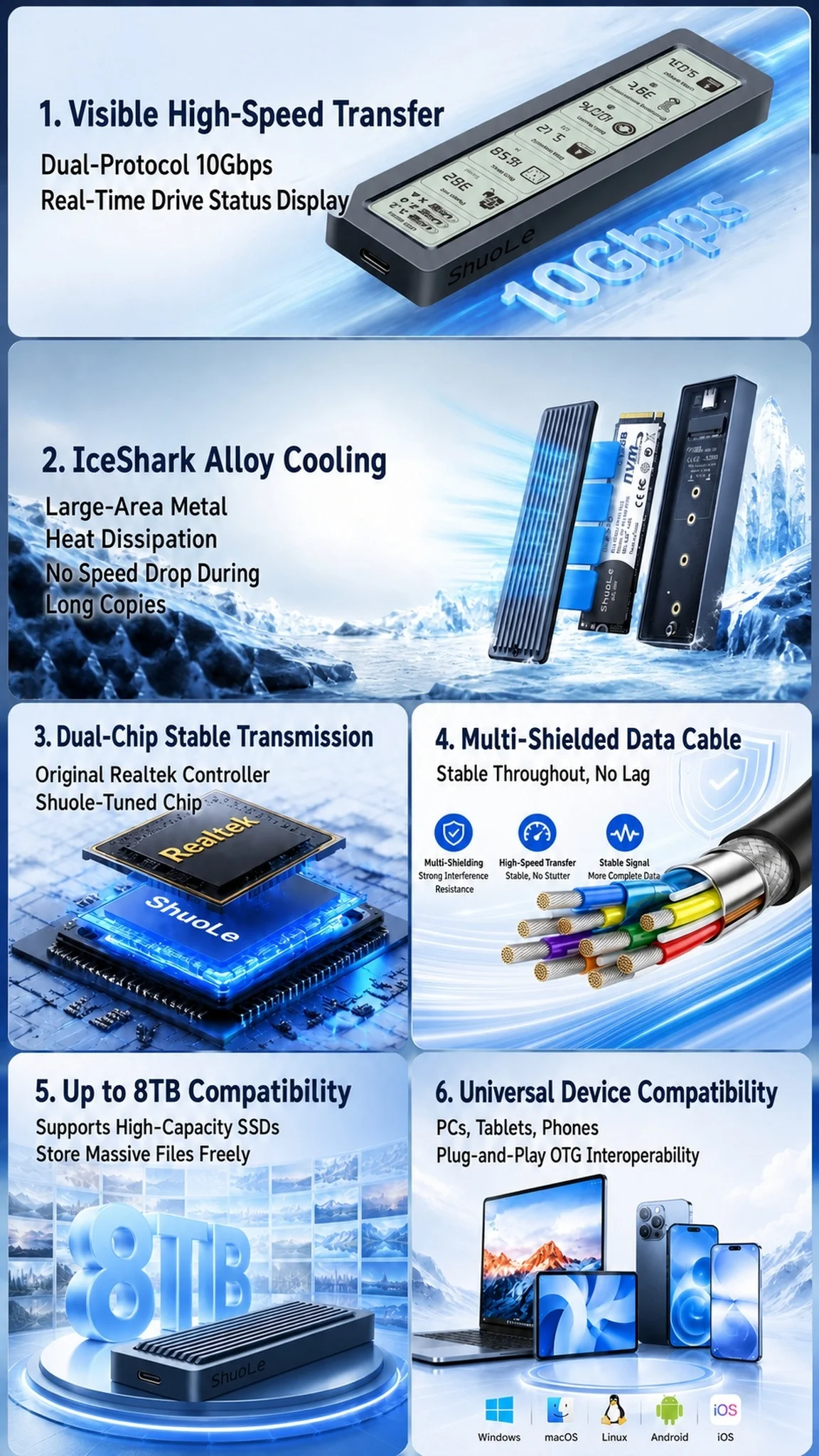
Real-time drive status monitoring, no software required, low power & long lifespan
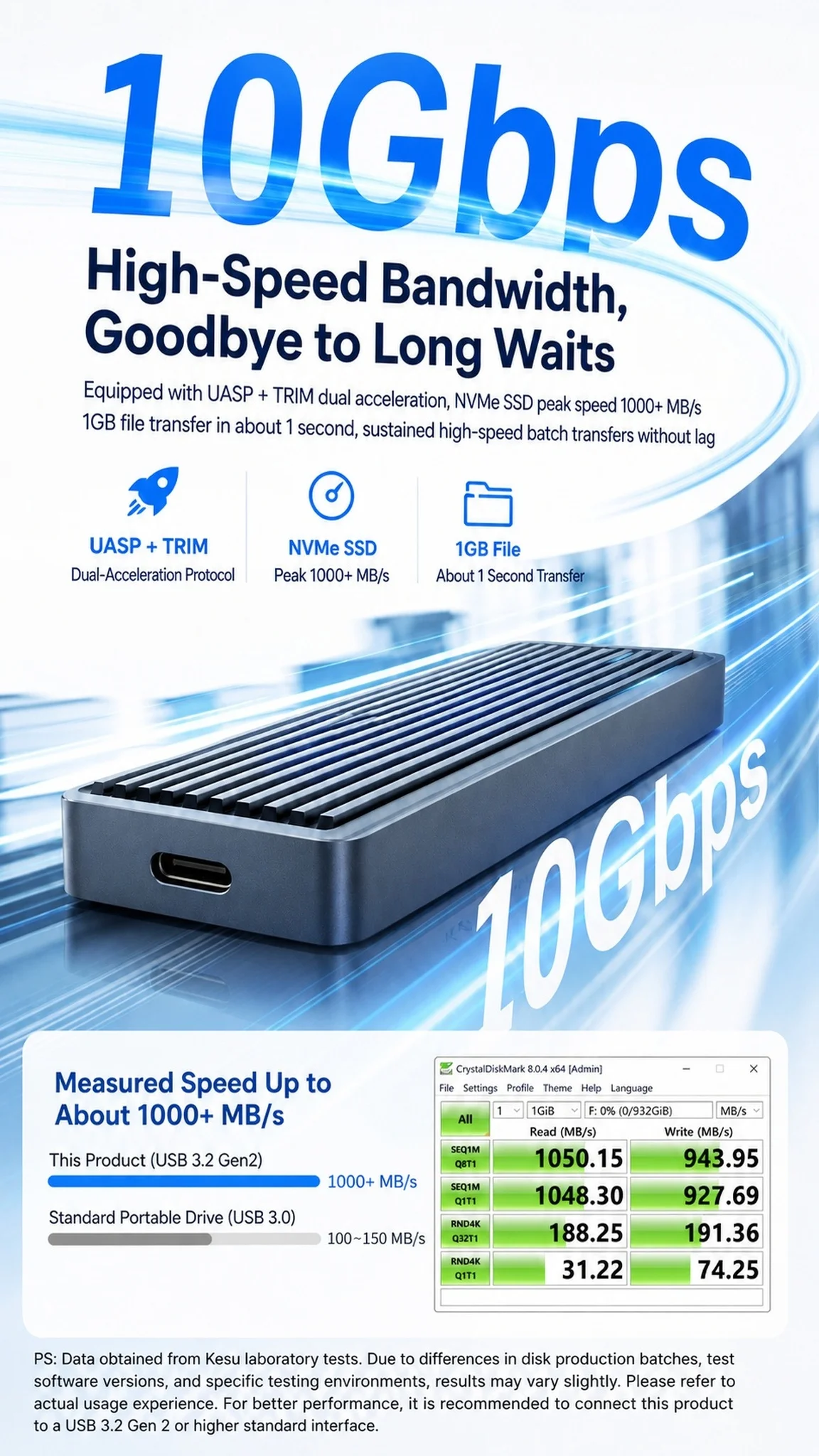
UASP+TRIM Accelerated, 1GB File in 1 Second
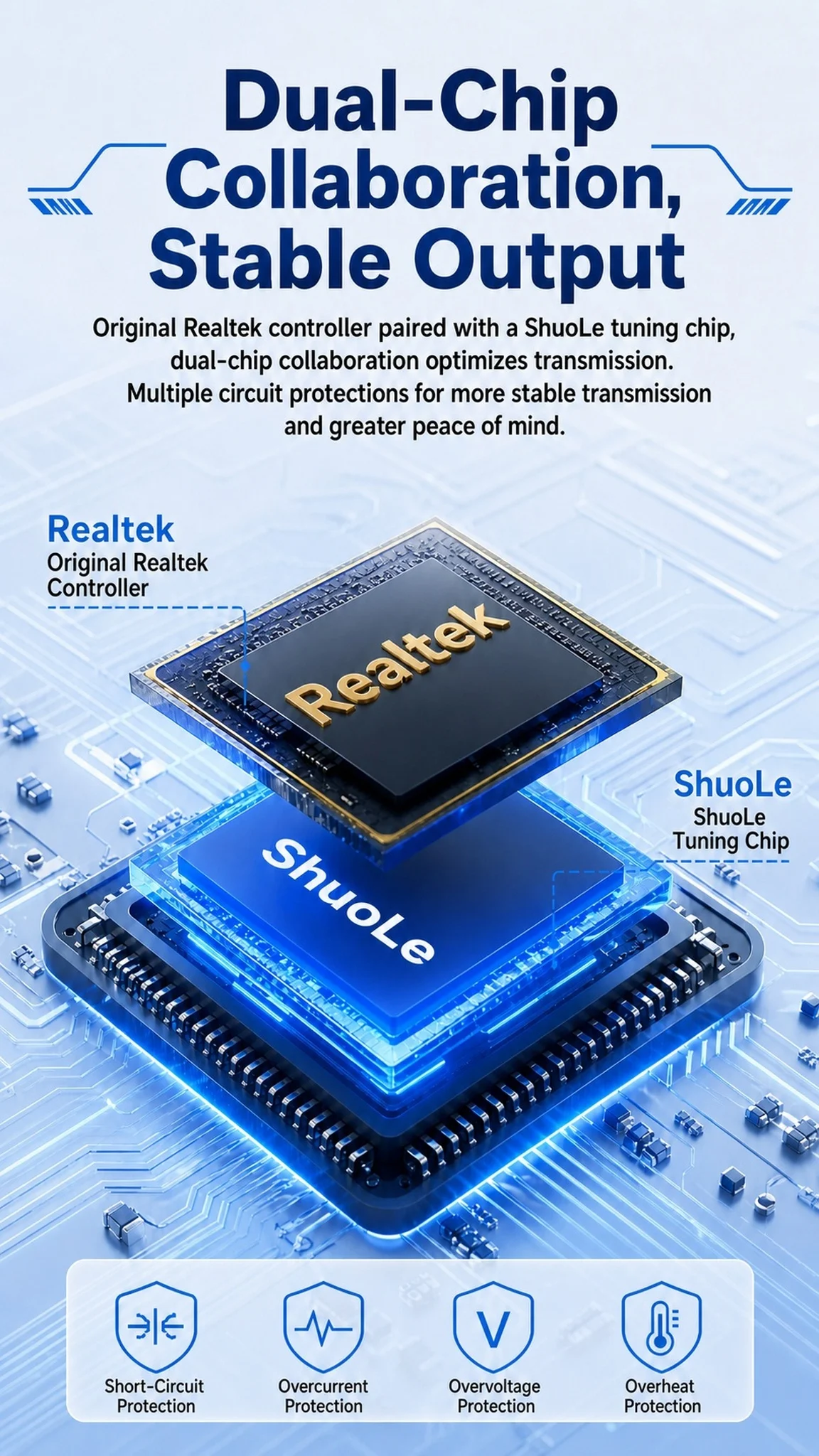
Optimized Speed & All-Round Circuit Protection
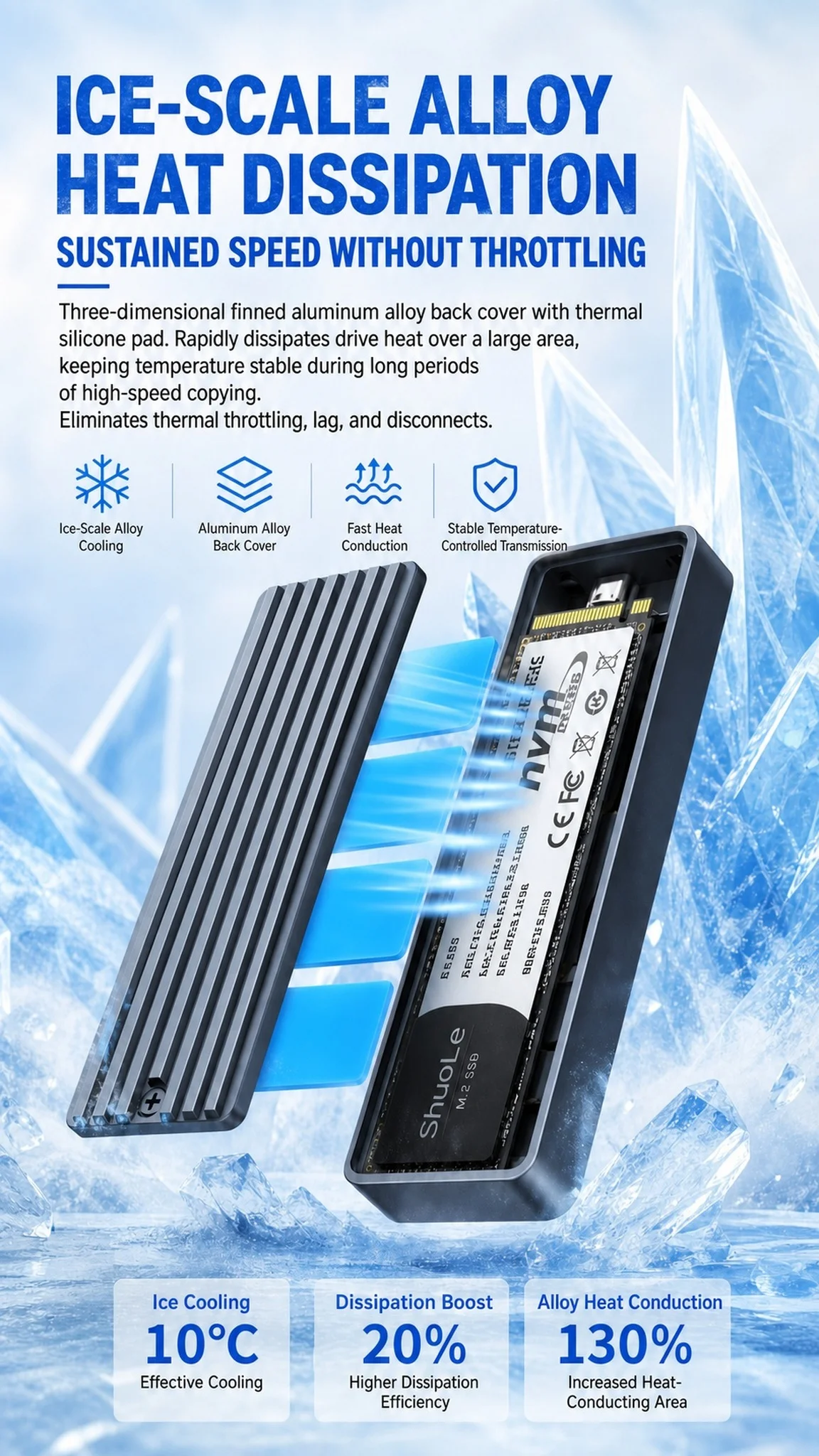
Sustained Full Speed, No Thermal Throttling
Store All Your Media & Project Files Freely
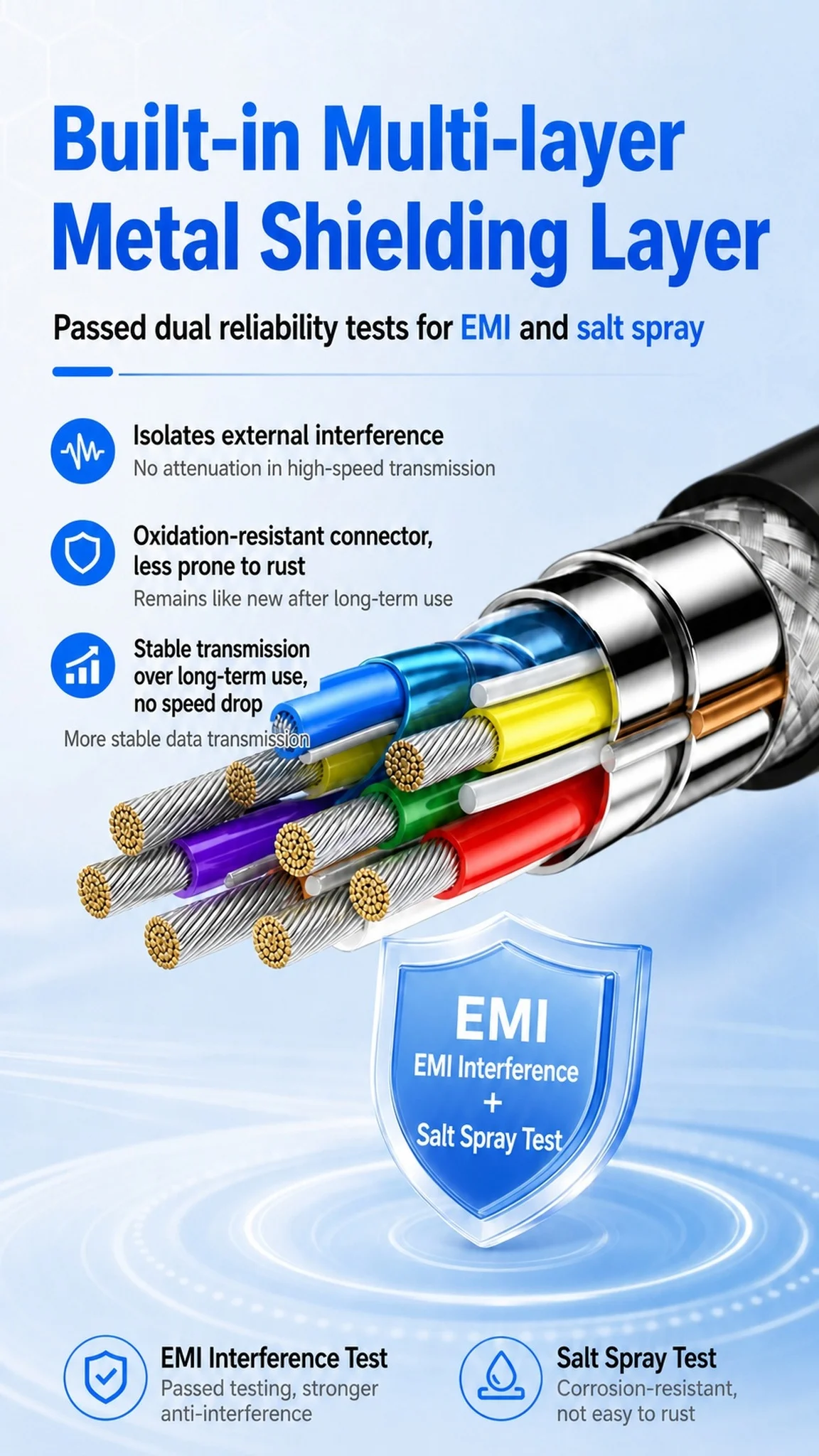
Dual EMI & Corrosion Resistance Tested
 Multi-Device Compatible
Wide cross-device compatibility for higher efficiency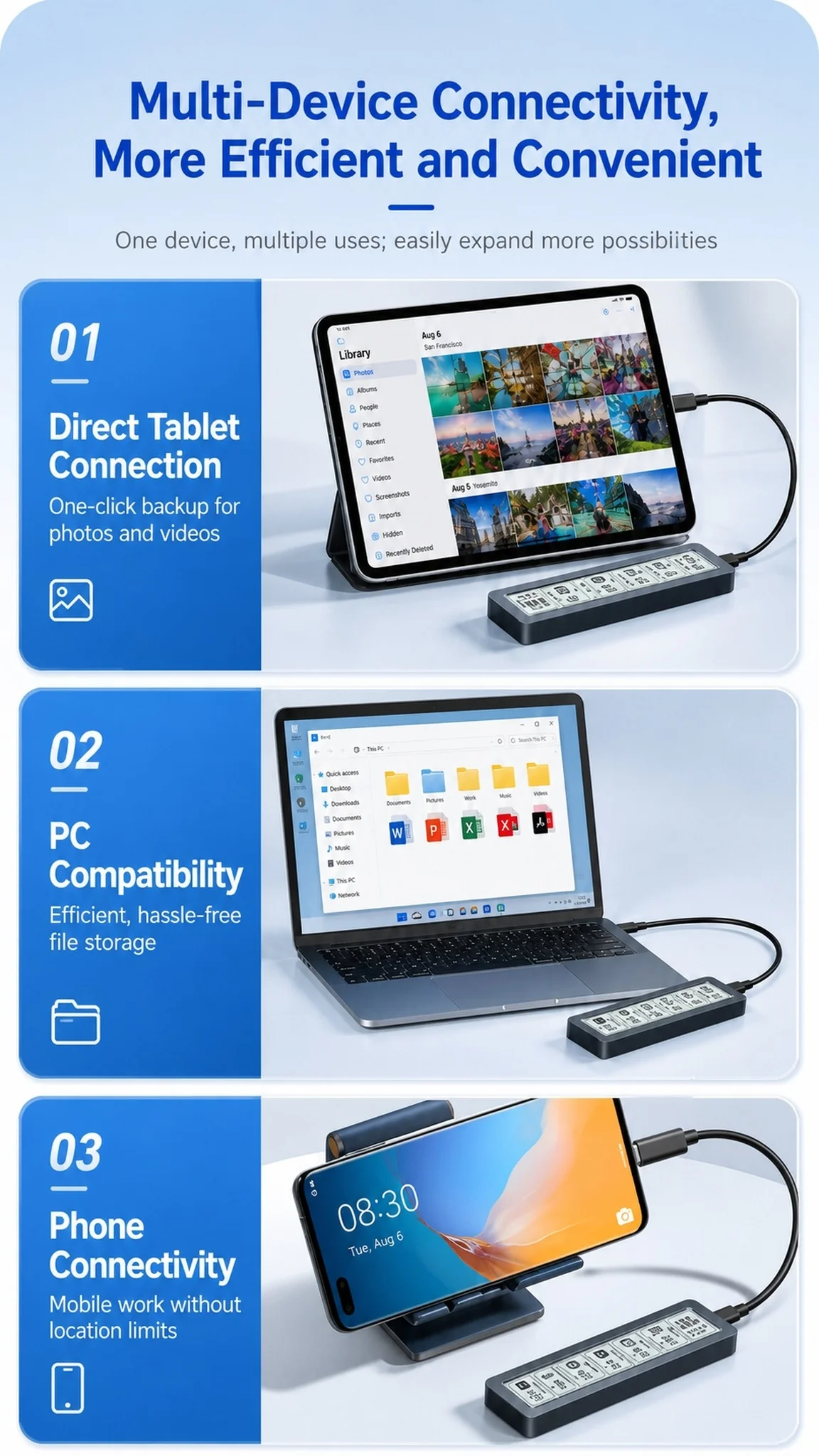
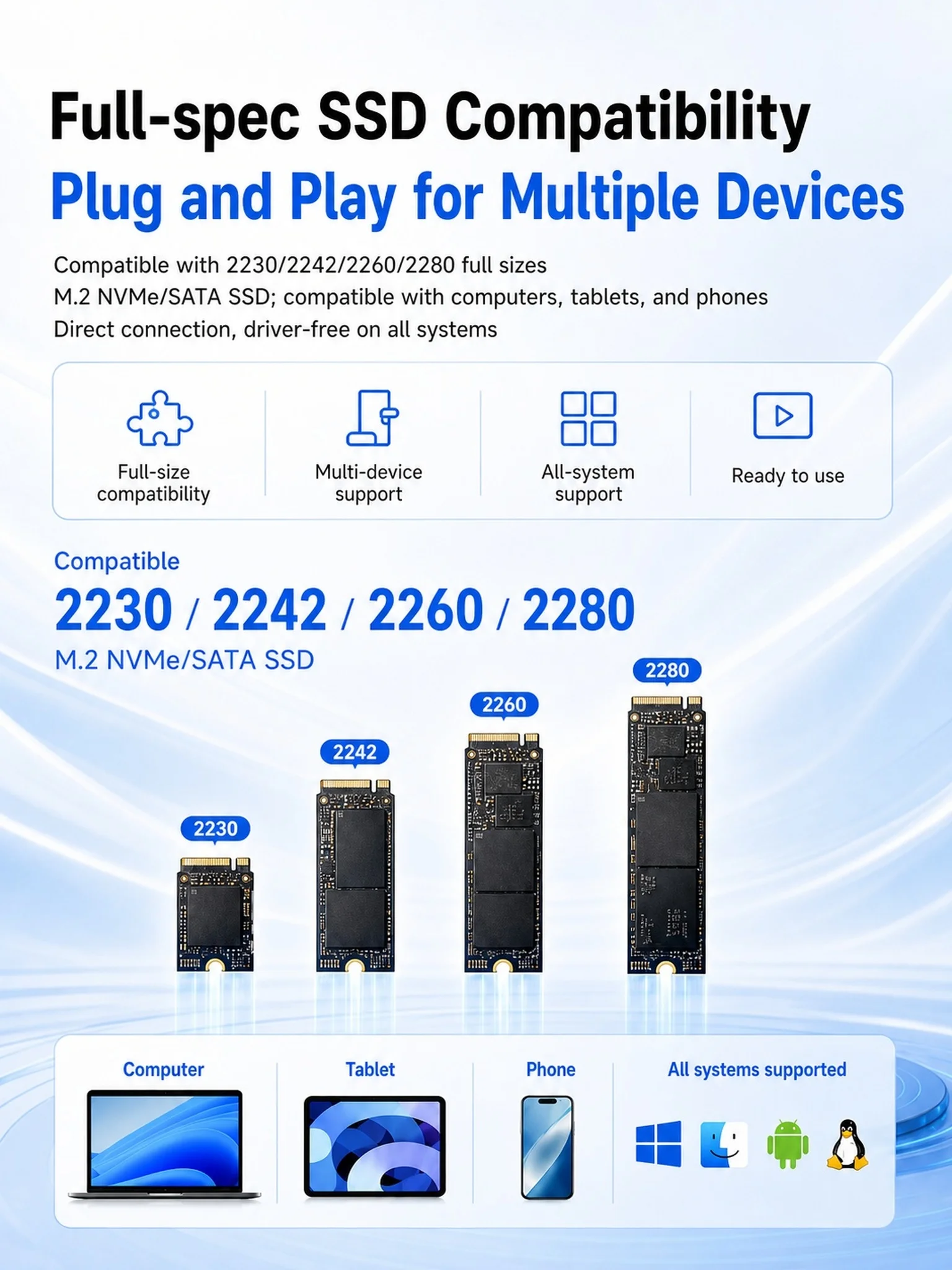
Fully compatible with 2230/2242/2260/2280 NVMe & SATA M.2 SSDs. Driver-free plug-and-play on computers, tablets and phones
Hard disk health monitoring:
Come with HD display to monitor your hard drive usage in real time
Display content includes:
Disk health/Run time/Operating temperature/Total data writes/Power on/USB voltage.
The datas on the display allow you to monitor the usage of the hard disk more directly
When your hard drive health is below 100%, you need to pay attention to backup data in time.
Note: To perfectly reflect product performance (up to 10Gbps)for NVMe PCI-e
Please connect this M.2 SSD enclosure to a device with a USB 3.2 gen 2 standard interface.
The solution to the problem that the device cannot recognize the SSD through this M.2 enclosure USB C.
For a new SSD,
You should format it into Exfat or NTFS format before use, then it could be detected and used normally.
Please finish disk initialization according to the following steps.
How to start disk management?
Right-click "Computer' "Manage' "Disk Management", Find your unallocated disk, right-click "Unallocated", andchoose"New Simple Volume Wizard".
How to start disk management (in windows 10)?
Click Start -> Run -> type compmgmt.msc -> click OK. Alternatively, right-click on the My Computer icon and select'Manage'. In the console tree, click Disk Management.
Product specifications
| Brand Name | NoEnName_Null |
|---|---|
| Country of origin | China |
| Supporting Hard Drive Capacity | 4TB |
| Case Material | aluminum |
| Package | Yes |
| Size | 1.8" |
No reviews found